FileMaker Pro, deployed to every Mac and PC you look after.
For in-house developers rolling FileMaker out across an organization, and consultants deploying it customer after customer. Paste a Claris license page, choose the settings, and get signed, notarized installers that set up FileMaker Pro without asking a single question.
Free and open source (MIT). You need your own FileMaker Pro license. Updates install from inside the app.
Made for the people who deploy FileMaker
Whether you look after one organization or a list of customers, the job is the same: the right version, licensed and set up the same way on every machine.
IN-HOUSE DEVELOPERS
Roll FileMaker Pro out across your organization
One set of installers for every Mac and PC, licensed and set up identically.
Signed and notarized, so they deploy cleanly through your MDM, a software portal or a file share.
Installers refuse a Mac or PC older than Claris supports, so a rollout cannot get ahead of your OS upgrades.
When Claris ships a new version, rebuild in minutes, or let your build server do it.
CONSULTANTS
Deploy FileMaker Pro to every customer
A profile per customer: their license, their Assisted Install settings, their signing.
Switch customers from the sidebar; each keeps its own built installers and logs.
Hand over installers their staff can just run, or their IT can push to every machine.
How it works
Four steps, the same ones you see in the app's sidebar.
1
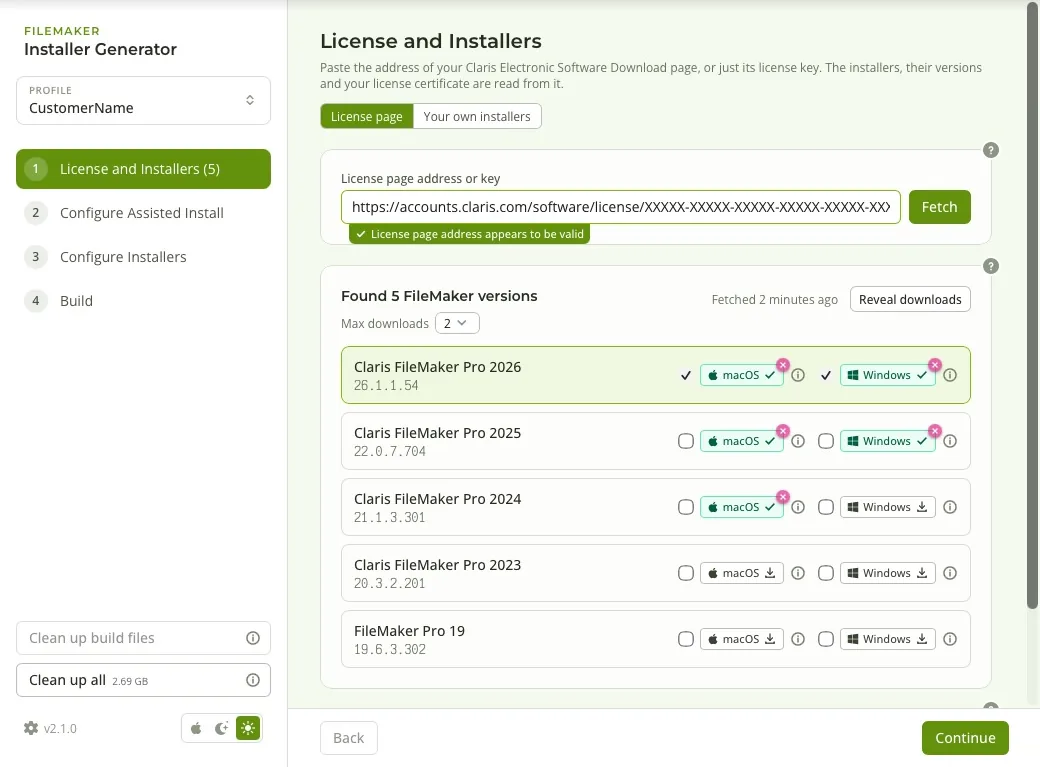
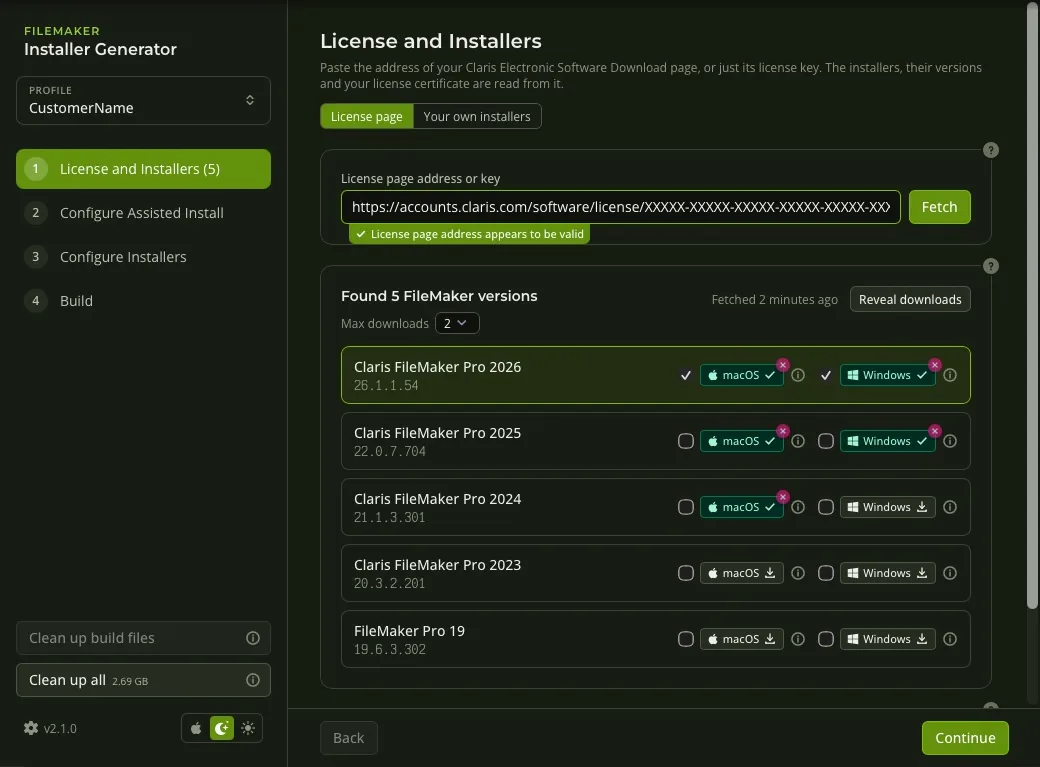
License and Installers
Paste the Claris license page address, yours or your customer's. The app lists every FileMaker version it covers and fetches your license certificate. Or use installers you already have.
2
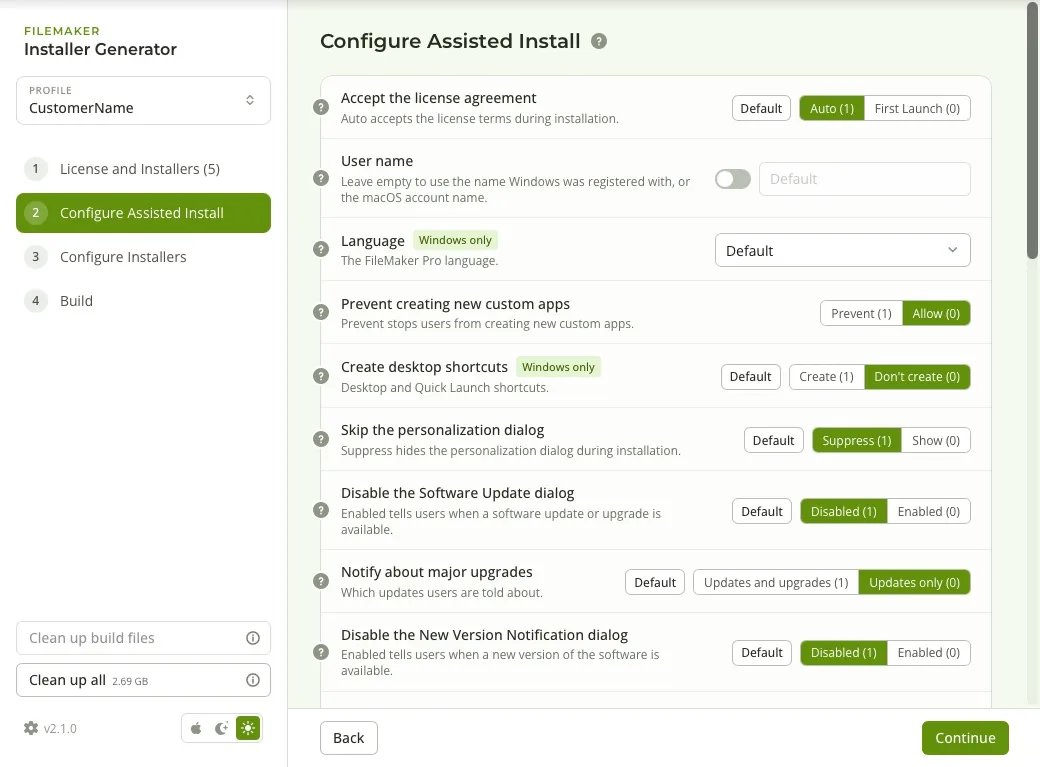
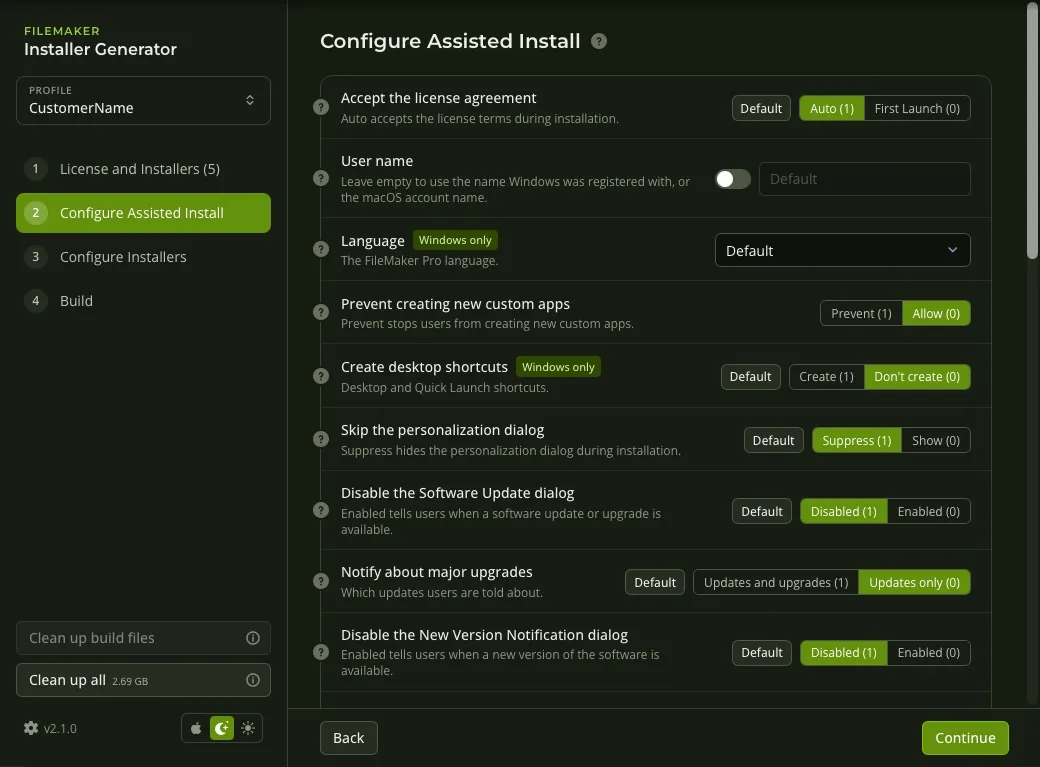
Configure Assisted Install
Choose the installation settings: user name, organization, update prompts, shortcuts, plug-ins and more, each explained in plain words.
3
Configure Installers
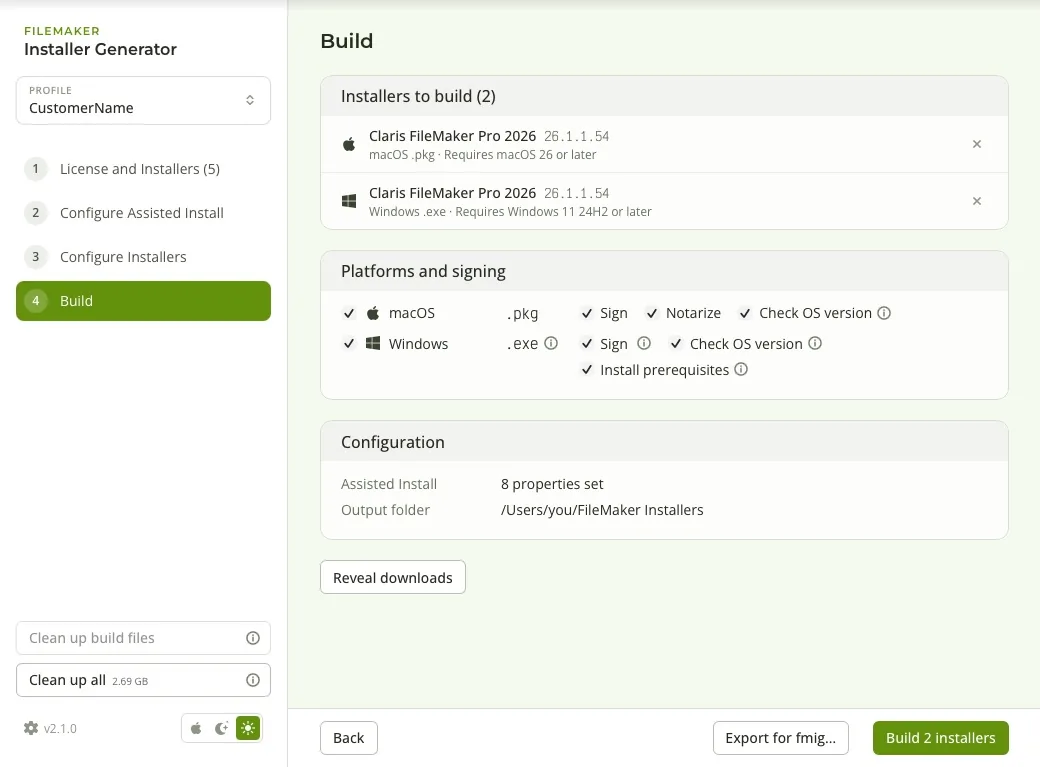
Pick the output folder and how each platform is signed: Developer ID and notarization for macOS, Azure Artifact Signing or a certificate for Windows.
4
Build
One click builds every installer you ticked, with live progress and a saved log. Finished installers are listed with Reveal.
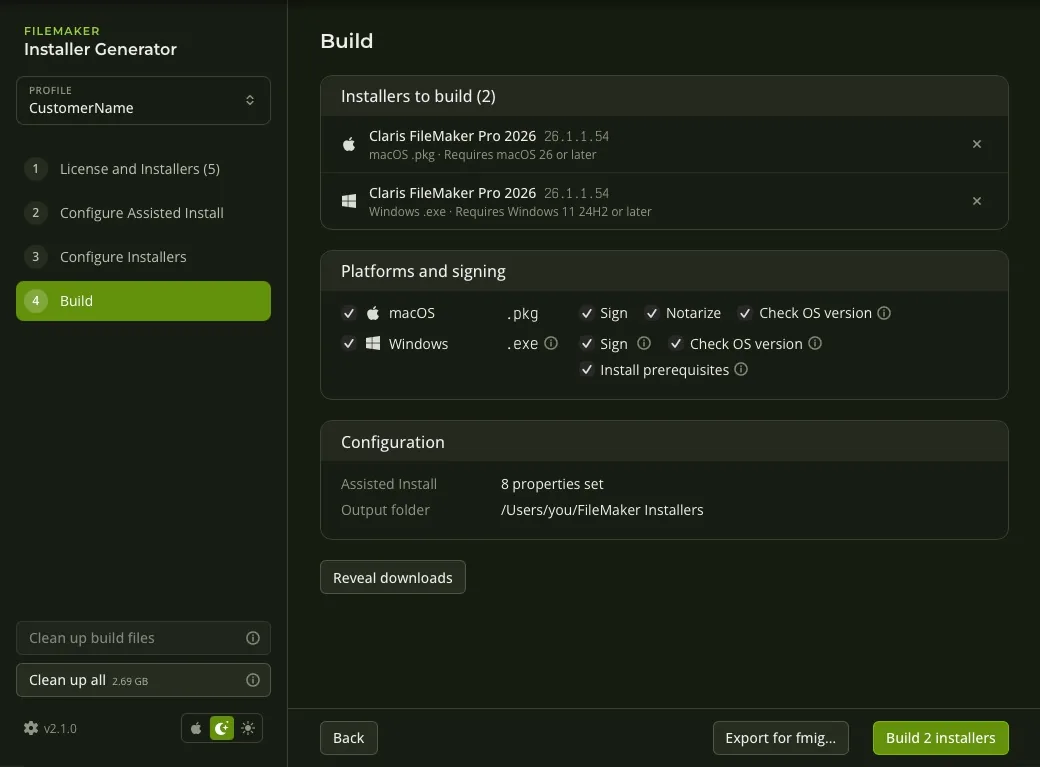
Every Assisted Install setting, with help and FileMaker's own default.Light and dark, following your Mac or PC.
Everything a deployment needs
Your license page, or your installers
Read versions and downloads straight from your Claris license page, or bring .dmg and .exe files you already have. Versions are read from the files.
Signed and notarized
macOS packages signed with your Developer ID and notarized by Apple. Windows installers signed with Azure Artifact Signing or your own certificate.
Checks the operating system first
Installers stop on a Mac or PC older than Claris supports, instead of installing an app that crashes.
Windows prerequisites included
The Visual C++ runtime, WebView2, .NET Framework and Bonjour are installed when missing, before FileMaker Pro.
Assisted Install, built in
Your settings and license certificate go into every installer, so FileMaker Pro installs without questions.
A profile per customer
Keep each customer, department or license separate: its own license page, settings, built installers and logs. Duplicate one to start the next.
fmig on build servers
The same builds from a terminal or CI, from a profile or a config file exported from the app.
Keeps itself current
Checks for updates and shows what's new, and asks first when an update changes something you rely on.
macOS or Windows?
The app runs on both, but only a Mac can build macOS packages. To build for both platforms, run it on a Mac.
On macOS
On Windows
Build macOS .pkg installers
Yes
No (needs Apple's tools)
Sign and notarize macOS installers
Yes
No
Build Windows .exe installers
Yes
Yes
Sign Windows installers
Yes
Yes
The fmig command-line tool
Settings → Tools → Install
Added to PATH by the installer
FOR BUILD SERVERS
Build on every release, not by hand.
Export a profile from the app, one per customer or department, commit the config, and let your CI build signed installers with fmig. Secrets come from environment variables.